
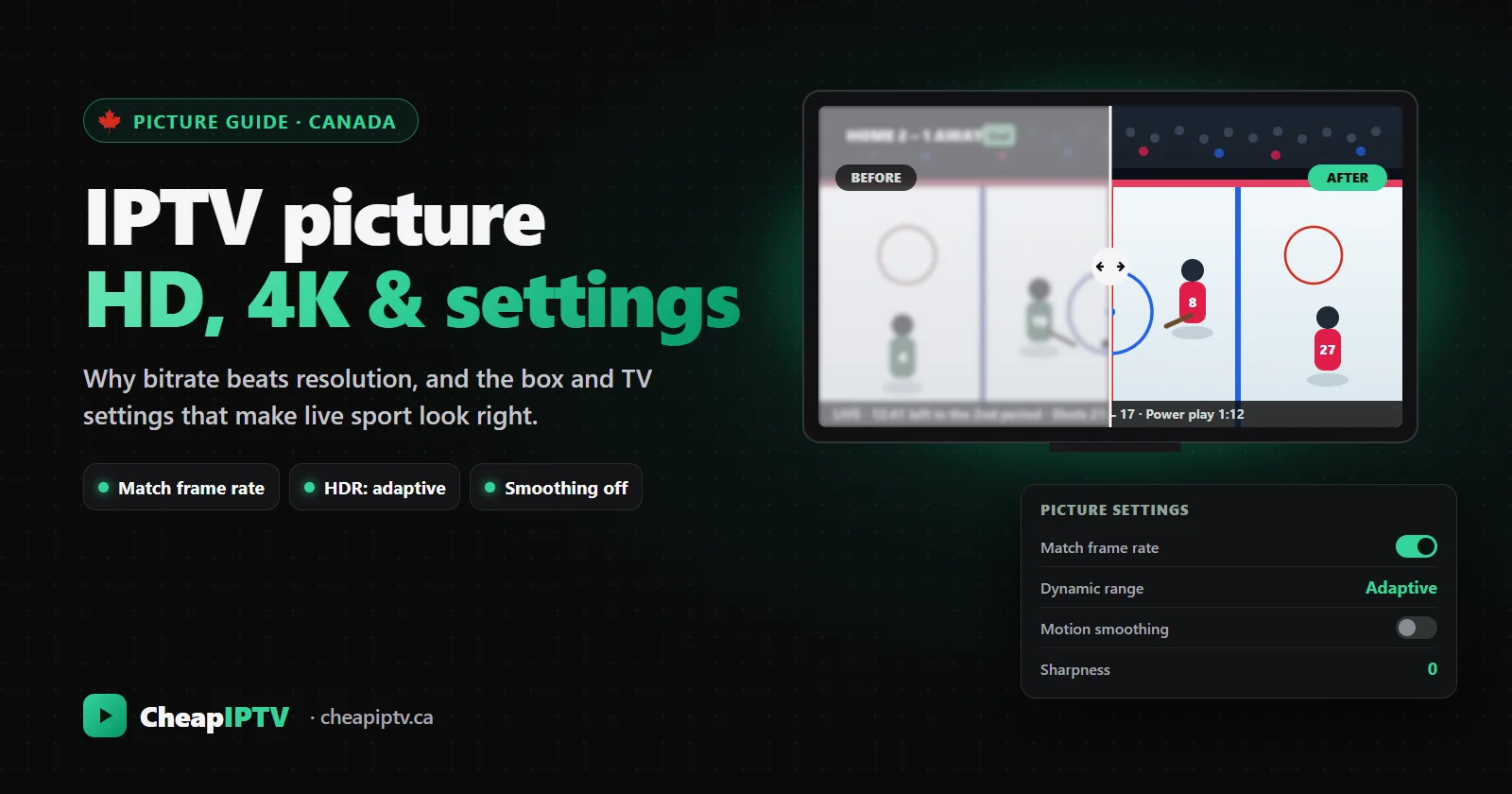
You paid for a sharp new 4K TV, you have a fast internet plan, and the hockey game still looks a little soft. The players leave faint trails across the ice, the score ticker shimmers at the edges, and the faces in the crowd shots look like they were painted. Nine times out of ten, nothing is wrong with the stream. The problem sits in a handful of settings spread across your TV, your streaming box and your player app, most of which were never designed with live IPTV in mind.
Picture quality in IPTV comes from a chain: how the channel was produced, how it is compressed and delivered, how your box decodes it, and how your TV processes and displays it. A weak link anywhere in that chain shows up on screen. The good news is that the parts you control are all free to fix, and most take less than a minute each.
This guide explains what actually decides how a channel looks, why HD sometimes beats 4K, and the exact TV and device settings we recommend to customers of our IPTV Canada service. Grab your remote; you will want to try these as you read.
- Bitrate matters more than resolution. A well-encoded HD channel often looks better than a 4K channel that keeps stepping down for lack of bandwidth.
- Turn on frame rate and dynamic range matching on your streaming box. It fixes sports judder and washed-out colours in one go.
- Turn off motion smoothing for films, and keep it low for sport. Turn sharpness down and noise reduction off for HD channels.
- Set the TV to show the full picture (Just Scan, Screen Fit or similar) so nothing is cropped or stretched.
- Use the right HDMI port and cable for 4K HDR, and enable the enhanced HDMI mode on that port.
- What decides how a channel looks
- SD, HD, Full HD and 4K
- Why bitrate beats resolution
- H.264, HEVC and AV1 in plain language
- Interlaced channels and jagged lines
- Frame rate: why some sport stutters
- HDR without the washed-out look
- Settings on your streaming box
- Settings on your TV
- HDMI ports and cables for 4K
- Diagnose what you are seeing
- Choosing channels and plans for the best picture
- Frequently asked questions
What decides how a channel looks
It helps to picture the journey a frame of video takes before it reaches your eyes.
- Production. The broadcaster produces the channel at a certain resolution and frame rate. Nothing later in the chain can add detail that was never captured.
- Compression. The channel is compressed with a codec such as H.264 or HEVC, at a chosen bitrate. This is where most of the quality is won or lost.
- Delivery. The stream travels over the internet to your home. If your connection dips, adaptive streaming steps down to a lower bitrate for a moment instead of freezing.
- Decoding. Your streaming box or TV app turns the compressed stream back into pictures. Older devices can struggle with newer codecs or high bitrates.
- Processing and display. Your TV scales the picture to its panel, applies its own sharpening, smoothing and colour settings, and shows it.
Steps one and two are in the provider's hands. Step three depends on your connection. Steps four and five are entirely yours, and they are where most visible problems come from. We cover each in turn.
SD, HD, Full HD and 4K
Resolution is the number of pixels in each frame. These are the levels you will meet in an IPTV line-up:
| Label | Resolution | Typical use | On a 55-inch 4K TV |
|---|---|---|---|
| SD | 480 lines | Older and smaller international channels | Visibly soft; fine on a small screen |
| HD | 720p | Many sports networks, chosen for smooth motion | Good, especially for fast action |
| Full HD | 1080i or 1080p | Most major news, entertainment and specialty channels | Very good at normal viewing distance |
| 4K UHD | 2160p | Selected events, films and premium channels | Excellent, if the bitrate is high enough |
Two points surprise people. First, many sports networks deliberately broadcast in 720p rather than 1080i, because 720p carries 60 full frames every second and handles fast motion cleanly. A 720p hockey game is not a poor stream; it is how the game was produced. Second, at typical living-room distances, the difference between good Full HD and good 4K on a 55-inch screen is smaller than most people expect. The jump becomes obvious on larger screens or when you sit close.
Why bitrate beats resolution
Bitrate is the amount of data used to describe each second of video, measured in megabits per second. Think of it as the budget the encoder has to paint each frame. Resolution decides how big the canvas is; bitrate decides how much paint there is to cover it.
When the budget is generous, fine detail survives: individual blades of grass on a soccer pitch, the texture of a jersey, a clean dark sky. When it is tight, the encoder has to cut corners, and you see blocks in dark scenes, smeared detail during fast motion, and bands of colour where a smooth gradient should be.
That is why a 4K stream that is starved of bandwidth can look worse than a solid Full HD one. If your connection cannot hold a 4K stream steady, adaptive streaming keeps stepping it down, and you end up watching a 4K channel at a bitrate lower than the HD version of the same channel would use. On a busy evening, the HD version is often the sharper choice.
As a rough guide, Full HD IPTV streams usually run at 5 to 8 Mbps and 4K streams at 12 to 20 Mbps. Your connection needs headroom above that, which is why we recommend a stable 15 Mbps per HD screen and 25 Mbps for 4K. Our guide to how much internet speed you need for 4K IPTV goes into the numbers, and our IPTV speed test shows what your TV actually receives. If several TVs stream at once, the needs add up; our multi-room guide has a table for households with two or three screens.
H.264, HEVC and AV1 in plain language
A codec is the method used to compress video. Newer codecs describe the same picture in less data, which means better quality at the same bitrate, or the same quality at a lower one.
- H.264 (AVC) is the long-standing standard. Every device decodes it, and most HD channels still use it.
- HEVC (H.265) needs roughly half the data of H.264 for the same picture. It is standard for 4K channels, and every 4K-capable streaming box sold in recent years decodes it.
- AV1 is newer and more efficient again. Few live channels use it today, but support is a sensible thing to have in a new box.
The practical point is decoding. If your device cannot decode a codec in hardware, it either refuses the channel or plays it with stutter. A 4K channel that stutters while HD channels play perfectly usually means the device is the bottleneck, not the stream. Our guide to the best IPTV box in Canada lists which current devices handle HEVC and AV1, and our compatibility checker shows codec support for each device type.
Interlaced channels and jagged lines
The "i" in 1080i stands for interlaced. Instead of sending full frames, an interlaced channel sends alternating half-pictures: the odd lines, then the even lines. Modern TVs are progressive, so the box or TV has to stitch those halves back together, a step called deinterlacing.
When deinterlacing is done well, you never notice. When it is done poorly, you see fine horizontal combing on moving edges, a shimmering score ticker, and jagged diagonal lines such as the boards in a hockey rink or the sidelines on a football field. These artefacts are most visible in sport, exactly where you look closest.
If you see them, try these in order:
- Let one device do the work. Set your streaming box to output a fixed progressive format at your TV's resolution, so the box deinterlaces and the TV does not try a second time.
- Check the player's video settings. Some players offer a choice of deinterlacing method or a choice between hardware and software decoding. Switching can make a clear difference on particular channels.
- Try another player. Deinterlacing quality varies between apps. If one channel looks combed in one player and clean in another, keep the better one. Our comparison of IPTV player apps can help you choose.
Frame rate: why some sport stutters
North American television runs at 60 frames per second, strictly 59.94. Much of Europe runs at 50. A lot of international sport reaches Canada in its original 50 frames per second form, including plenty of soccer coverage, while NHL, NFL and NBA broadcasts are 60.
If your box forces everything out at 60 frames per second, a 50 frames per second soccer match has to be stretched to fit. The result is a faint, regular hitch in camera pans, most obvious when the camera follows the ball across the pitch. Films, which are shot at 24 frames per second, show a similar judder if the box converts them to 60.
The fix is frame rate matching: the box switches the TV's refresh rate to match whatever is playing. Apple TV, Fire TV, Google TV devices and the Nvidia Shield all have a setting for it, and many player apps can also switch the frame rate themselves. Turn it on once and leave it on. Expect a second of black screen when you change between a 50 and a 60 frames per second channel; that is the TV switching modes, and it is normal. Soccer fans will find more on this in our guide to watching the Premier League in Canada, and hockey fans in our NHL guide.
HDR without the washed-out look
HDR, high dynamic range, lets a picture show brighter highlights and richer colour than standard dynamic range. You will see three main formats: HDR10, Dolby Vision, and HLG, which is the format broadcasters use for live HDR events.
Here is the catch. Most live IPTV channels are still standard dynamic range. If your streaming box is set to output HDR all the time, it has to convert every normal channel into HDR, and the result usually looks flat, grey and washed out. People often assume the channel is poor, when it is simply being shown in the wrong mode.
The fix is dynamic range matching. On Apple TV it is called Match Dynamic Range, on Fire TV you set the dynamic range to Adaptive, and Google TV devices have a similar option in their display settings. The box then sends HDR only when the content is actually HDR, and standard channels look the way they should.
If HDR content itself looks too dark, the TV is probably in an energy-saving mode that limits brightness, or its HDR picture mode is set to an eco preset. Switch to a Movie, Cinema or Filmmaker mode for HDR, and turn off any ambient-light power saving while you watch.
Settings on your streaming box
These take five minutes and make the biggest single difference. Menu names vary slightly between devices, but every major box has an equivalent.
- Resolution: set it to your TV's native resolution, usually 4K on a modern set. Let the box output 4K even for HD channels; its upscaling is usually as good as the TV's, and it avoids constant mode switching.
- Match frame rate: on.
- Match dynamic range: on (or Adaptive on Fire TV).
- Colour format: leave it on automatic unless you know your TV prefers a specific setting.
- Audio: if the picture and sound drift apart, look for an audio delay or lip-sync setting in the player, or turn off any surround passthrough your sound system does not support.
- Player app: use hardware decoding by default, and only switch to software decoding if a particular channel misbehaves.
If your box is several years old and still struggles after these changes, it may simply be out of breath. A new box with a current processor and HEVC support costs about what a year of IPTV does, and it is often the best upgrade you can make. Our Fire TV Stick setup guide walks through these settings on the most popular device.
See the difference on your own TV
HD and 4K channels, movies and catch-up on every plan. Try it on your own screen before you choose.
Settings on your TV
TVs leave the factory set to look bright in a showroom, not accurate in your living room. These changes make broadcast and IPTV channels look the way they were produced.
Picture mode
Start with Movie, Cinema or Filmmaker Mode, which many recent TVs from Samsung, LG and others offer. These modes switch off most of the heavy processing and use accurate colour. For daytime sport in a bright room, a Standard mode with motion settings adjusted can work better. Avoid Vivid or Dynamic modes: they push colour and sharpness far past anything the broadcaster intended.
Motion smoothing
Motion smoothing creates extra in-between frames to make movement look smoother. Samsung calls it Auto Motion Plus, LG calls it TruMotion and Sony calls it Motionflow. On films and drama it produces the "soap opera effect" that makes a movie look like a home video. On sport, a low setting can reduce blur, but high settings create halos around players and the puck. Our recommendation: off for films and series, low or custom for sport, and never at maximum.
Sharpness
Turn it down. Sharpness controls do not add detail; they add a thin bright outline to edges, which looks crisp at first glance and fake on a second look, especially on text and score graphics. On many TVs the right value is zero or close to it.
Noise reduction
Turn it off or to low for HD and 4K channels, where it smears fine detail. On a low-quality SD channel, a little noise reduction can help hide compression blocks, so it is worth trying a low setting there.
Picture size and overscan
Many TVs crop the edges of the picture by default, a leftover from analogue broadcasting. That throws away detail and forces the TV to rescale every frame. Set the picture size to the option that shows the whole image: Screen Fit on Samsung, Just Scan on LG, and similar names on other brands.
Brightness and energy saving
Energy-saving and automatic brightness modes dim the picture in ways that crush dark scenes. If night games or dark films look murky, turn them off while you watch.
If you watch through an app on the TV itself rather than a box, the same TV settings apply. Our Samsung and LG setup guide covers the apps.
HDMI ports and cables for 4K
A 4K HDR signal at 60 frames per second carries a lot of data, and two easily missed details can quietly cap your picture.
- Use the right port. On some TVs, only certain HDMI ports support full 4K HDR at 60 frames per second. Check the labels on the back of the TV or the manual.
- Turn on the enhanced mode for that port. Many TVs ship with the full HDMI capability switched off. Samsung calls it Input Signal Plus, LG calls it HDMI Ultra HD Deep Colour, and Sony calls it Enhanced format. Without it, your box may fall back to standard dynamic range or lower colour quality.
- Use a capable cable. For 4K HDR at 60 frames per second, use a cable certified as Premium High Speed or Ultra High Speed. An old cable from a DVD player may work for HD and fail intermittently at 4K, which looks like random dropouts.
Diagnose what you are seeing
Match the symptom to the likely cause before changing everything at once.
| What you see | Usual cause | Fix |
|---|---|---|
| Blocks in dark scenes, colour banding | Low bitrate | Check speed; choose the HD version on a busy evening |
| Picture goes soft, then sharp again | Adaptive streaming stepping down | Wire the box; test speed at the TV |
| Combing or jagged lines on moving edges | Poor deinterlacing | Fixed progressive output; try another player |
| Regular hitch in camera pans | Frame rate mismatch | Turn on frame rate matching |
| Films look like a home video | Motion smoothing | Turn it off for films and series |
| Washed-out, grey picture | HDR forced on standard channels | Turn on dynamic range matching |
| Bright outlines around text and players | Sharpness too high | Turn sharpness down |
| Edges of the picture cut off | Overscan | Set Screen Fit, Just Scan or similar |
| 4K channels stutter, HD fine | Device cannot decode HEVC smoothly | Update the box, or choose a newer one |
Many player apps can show stream information on screen, including the resolution, frame rate and codec of what is playing. It is the quickest way to tell whether a soft picture is a 720p channel doing what it should or a 4K channel that has stepped down. If the picture freezes rather than going soft, that is a delivery problem, and our buffering guide picks up from there. On Starlink or other rural connections, our rural internet guide explains how to trade a little resolution for a steady picture.
Choosing channels and plans for the best picture
Line-ups often carry the same channel in more than one quality. A few simple habits get the best from them:
- Build your favourites from the best version that holds steady on your connection, usually Full HD for everyday viewing.
- Save 4K for the moments that earn it: a big game, a film night, a nature documentary on a large screen.
- On a busy evening or a slower connection, choose HD over a 4K version that keeps stepping down.
- Keep the guide tidy by hiding the versions you never use, so the right one is always the one you click.
Every CheapIPTV plan carries the same channels in every quality available, HD and 4K included, so picture quality never depends on which plan you buy. What does change is how many screens can watch at once. If two TVs regularly watch 4K together, choose a plan with enough screens and make sure your connection has the headroom. The 3-month plan is the one most households start with, and the 12-month plan brings the monthly cost to its lowest. Every option is on our IPTV pricing page, and if anything about the picture still is not right after these steps, Online Support will look at it with you.
Get these settings right once and they stay right. The stream does its part; your TV and box just need permission to show it properly. That is the whole idea behind our IPTV Canada service: the full picture, on every screen in the house.
Frequently asked questions
Why does my IPTV look blurry on a 4K TV?
Usually because the channel is HD and the TV is upscaling it, because the stream has stepped down for lack of bandwidth, or because TV settings such as noise reduction or overscan are softening the picture. Check the stream information in your player, then work through the TV settings in this guide.
Is 4K IPTV worth it?
On a large screen with a steady connection of at least 25 Mbps, yes, for sport, films and documentaries. On smaller screens or busy connections, a solid Full HD stream often looks just as good and holds steadier.
Should I turn motion smoothing off for IPTV?
Turn it off for films and series, where it causes the soap opera effect. For sport, a low setting can reduce blur, but high settings create halos around fast-moving players. Never leave it at maximum.
Why does soccer stutter on my IPTV box?
Much international soccer is broadcast at 50 frames per second, while North American TV runs at 60. If your box forces 60, camera pans show a regular hitch. Turn on frame rate matching in your box's display settings.
Why do some channels look washed out?
Your box is probably set to output HDR all the time and is converting standard channels into HDR. Turn on dynamic range matching, called Match Dynamic Range on Apple TV and Adaptive on Fire TV.
What is the difference between 1080i and 1080p?
1080p sends full frames, while 1080i sends alternating half-frames that your box or TV has to combine. Done well, they look similar; done poorly, 1080i shows jagged lines on moving edges.
Do all CheapIPTV plans include 4K?
Yes. Every plan carries the same channels in every quality available, including HD and 4K. Plans differ only in length and in how many screens can watch at the same time.
The full picture, on every screen
54,000+ live channels in HD and 4K, from $19 a month. Interac e-Transfer, no contract, 7-day refund policy.