
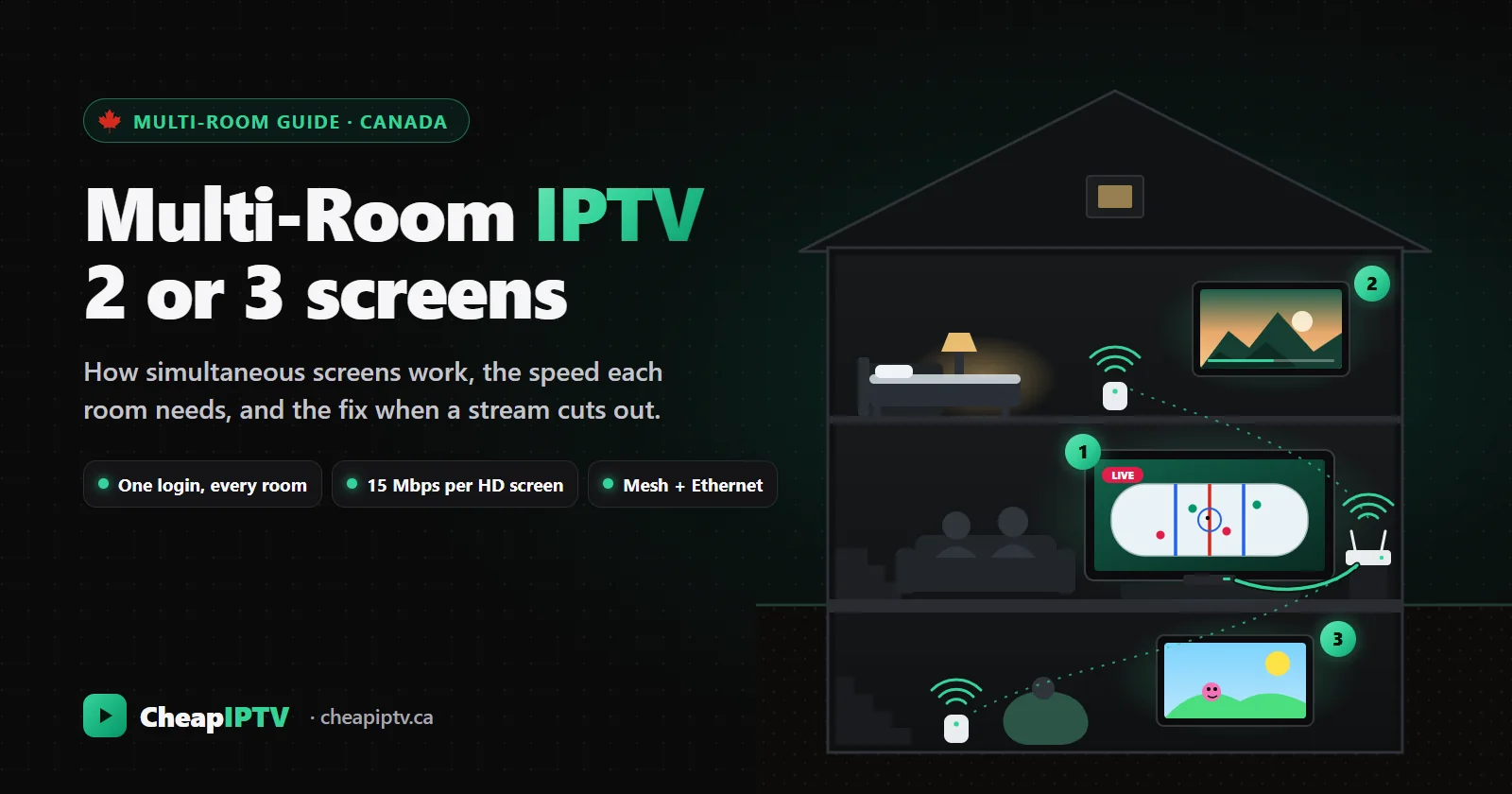
It is 7:30 on a Saturday night. The game is on in the living room, the kids are watching cartoons in the basement, and someone has disappeared upstairs with a series they refuse to talk about. With cable, that meant three receivers, three rental fees and a technician visit for the third room. With IPTV it means one subscription and three screens playing at the same time.
Multi-room viewing is one of the most common reasons Canadian households switch, and also the source of most of the confused messages we get in the first week. Why did the basement TV stop when Dad turned on the hockey? Do I need a separate login for each room? Will our internet cope with three streams at once? This guide answers all of it, from how simultaneous screens actually work to what each room needs and what to do when a stream cuts out.
It is written by the team behind CheapIPTV, an IPTV Canada service with one-, two- and three-screen plans, but the principles apply to any IPTV subscription that limits how many streams can play at once.
- A "screen" is a stream playing at the same moment, not a device you own. You can install your login on as many TVs, phones and tablets as you like.
- Count your busiest hour. If two TVs are regularly on together, you need two screens. If three are, you need three.
- Plan on about 15 Mbps per HD screen and 25 Mbps per 4K screen, so three HD screens want a stable 45 Mbps.
- Wire the main TV and use mesh Wi-Fi for the rest. Most multi-room problems are Wi-Fi problems.
- If a stream stops when another starts, you have hit your screen limit. Check for a box still playing behind a TV that is switched off.
- How simultaneous screens work
- How many screens you actually need
- What multi-room IPTV costs
- Internet speed for several screens
- Getting a good signal to every room
- Choosing a device for each room
- Setting up the same login everywhere
- Kids' rooms and parental controls
- Game nights with every screen on
- When a stream cuts out
- Moving from one screen to two or three
- Frequently asked questions
How simultaneous screens work
When you subscribe, you get one set of login details: a server address, a username and a password. Those details are the same on every device. What the plan controls is how many streams can play under that login at the same moment. Providers call this screens, connections or devices; they all mean the same thing.
Think of it like seats rather than keys. You can hand out as many keys as you want, so the living-room TV, the bedroom stick, your phone and your partner's tablet can all have the app installed and logged in. But there are only so many seats. On a one-screen plan, one stream can play at a time. On a three-screen plan, three can.
A few details trip people up:
- Only playing video uses a screen. Scrolling the programme guide or browsing the movie library does not. The moment you press play, a seat is taken.
- Movies, series and catch-up count too. A film in the bedroom uses a screen exactly like a live channel in the living room.
- Location does not matter. Your phone on the bus, a laptop at the office and the TV at home all draw from the same pool. If a family member watches at the cottage, that uses one of your screens.
- A stream that is still running counts, even if nobody is watching. This is the big one, and we come back to it in the troubleshooting section.
When every seat is taken and another device presses play, one of two things happens depending on the player app: the new stream refuses to start with a "maximum connections" style message, or it starts and one of the existing streams stops. Either way, the fix is the same. Free up a seat or move to a plan with more of them.
How many screens you actually need
The mistake most people make is counting televisions. A house with four TVs rarely has all four on at once. What matters is your busiest hour: the evening slot, or the weekend afternoon, when the most screens are playing together.
A quick way to work it out is to think through one ordinary weekday evening and one weekend evening. Write down who watches what, where, and when. Then count the highest number of screens playing at the same time. That number is the plan you need. Phones count if people watch live TV or movies on them while the TVs are on.
| Household | TVs and devices | Usually playing at once | Plan |
|---|---|---|---|
| Single person or couple | 1 TV, 2 phones | 1 | 1 screen |
| Couple with different tastes | 2 TVs | 2 most evenings | 2 screens |
| Family with kids | Living room, basement, kids' tablet | 2 on weekdays, 3 on weekends | 3 screens |
| Roommates or students | A TV or laptop each | As many as there are roommates | 2 or 3 screens |
| Three generations under one roof | 3 or 4 TVs | 3 | 3 screens |
If you are torn between two plans, look at what happens when you are wrong. Too few screens means a regular argument at 8 pm. Too many means a few dollars a month you did not strictly need to spend. Most households that start one screen short end up upgrading within weeks.
Students sharing an apartment should also read our page on IPTV for students in Canada, and families can find more on kids' channels and family viewing on our IPTV for families page.
What multi-room IPTV costs
With CheapIPTV, every plan carries the same 54,000+ live channels and the same on-demand library. The only things that change the price are the number of screens and the length of the term. These are the current prices in Canadian dollars.
| Screens | 1 month | 3 months | 6 months | 12 months |
|---|---|---|---|---|
| 1 screen | $19.00 | $28.99 | $48.99 | $78.99 |
| 2 screens | $29.00 | $48.00 | $88.00 | $128.00 |
| 3 screens | $39.00 | $68.00 | $118.00 | $178.00 |
Two things stand out. First, extra screens cost much less than a second subscription would. Going from one screen to two adds $10 on a monthly plan, not another $19. Second, longer terms bring the price down sharply. A 12-month, three-screen plan at $178 works out to just under $5 per screen per month, against $13 per screen per month on the monthly three-screen plan.
Compare that with how cable handles extra rooms. Most cable and satellite providers charge a monthly rental for each additional receiver, on top of the TV package itself, and some charge an installation fee for each new room. With IPTV, the device in each room is something you buy once, and the subscription covers every room.
Every plan is prepaid by Interac e-Transfer, with no contract and no automatic renewal, and a 7-day refund policy applies if the service is not right for you. If you are unsure about the term, our plan length guide explains when one, three, six or twelve months makes sense. Full details are on the pricing page.
Internet speed for several screens
Each screen needs its own share of your connection, and they add up. These are the stable speeds we recommend, measured at the TV during the evening rather than at the router at noon.
| What is playing at once | Stable speed to aim for |
|---|---|
| One TV in HD | 15 Mbps |
| Two screens, both HD | 30 Mbps |
| Two screens, one 4K and one HD | 40 Mbps |
| Three screens, all HD | 45 Mbps |
| Two screens, both 4K | 50 Mbps |
| Three screens, all 4K | 75 Mbps |
Those figures include headroom on purpose. An HD stream itself uses well under 15 Mbps, but the rest of the house does not stop while the TVs are on. Phones update apps, laptops sync photos and game consoles download patches, usually at the worst possible moment. The headroom absorbs all of that.
Most Canadian home internet plans sold today are well above 75 Mbps on paper, so raw speed is rarely the limit. The limit is usually how much of that speed reaches each room, which is the next section. To see what a particular TV actually gets, run our IPTV speed test from that room, ideally at the time you normally watch. For the full explanation of bitrates, codecs and 4K, see our guide to how much internet speed you need for 4K IPTV.
If your household is on Starlink, 5G home internet or DSL, the maths is the same but the priorities are different. Our guide to IPTV on Starlink and rural internet covers data use per hour and the settings that help on those connections.
Getting a good signal to every room
A single router in a front hallway can cover a condo comfortably. It rarely covers a two-storey house with a finished basement. The living room right next to the router streams perfectly while the basement TV, two floors and a concrete slab away, buffers every evening. That pattern is so common we can usually diagnose it from the first sentence of a support message.
These are the fixes, in order of how much they help.
- Wire the main TV. If one room matters most, usually the living room where the sport is watched, run an Ethernet cable from the router to that TV's streaming box. It takes that screen off Wi-Fi entirely and leaves more airtime for the other rooms.
- Use a mesh system, ideally with wired backhaul. Mesh systems place several access points around the house that work as one network. If you can connect the nodes to each other with cable, each node delivers close to full speed. Wireless-only mesh still beats a single router, but each hop costs some speed.
- Try powerline adapters for awkward rooms. They send the network through your electrical wiring. In many houses they comfortably beat Wi-Fi through floors and concrete.
- Avoid cheap plug-in Wi-Fi extenders. They repeat the signal on the same channel and can halve the speed for every device behind them. For video, they often make things worse.
- Put streaming devices on 5 GHz. The 2.4 GHz band travels further but is slower and crowded with neighbours' networks. If a device can see a decent 5 GHz signal, use it.
The gateway your ISP supplied can also be part of the problem. Several of the big Canadian providers ship routers with settings that hurt streaming in the evening, and many households do better putting the ISP gateway in bridge mode and running their own mesh system behind it. We publish specific guides for Bell Fibe, Rogers Ignite, Telus, Vidéotron, Shaw and Cogeco.
Test it in every room before you choose
Try CheapIPTV on your own TVs and your own connection. No contract, no auto-renewal, 7-day refund.
Choosing a device for each room
You do not need the same device everywhere, and in most homes it makes sense to spend more on the main TV and less on the others.
The main TV. This is where the sport and the family movie night happen, so it deserves the best device and a wired connection. A Google TV box with a built-in Ethernet port is the safest choice in 2026. Our guide to the best IPTV box in Canada compares the options, including which Fire TV models to avoid since Amazon changed its operating system.
Bedrooms and the basement. A streaming stick is plenty. Choose a Fire TV Stick that still runs Fire OS, such as the 4K Max, and use the HDMI extender from the box so the stick is not pressed against the back of the TV. Our Fire TV Stick setup guide walks through installation.
A newer smart TV. Recent Samsung and LG sets can run an IPTV player straight from the TV's app store, so a second TV may not need a box at all. See our Samsung and LG setup guide for the apps that work.
Phones and tablets. Good for the kitchen, the kids' room or a quick check of the score. Our guides for iPhone and iPad and Android phones cover setup. Remember that each one playing uses a screen.
Whatever you choose, use the same player app across the house if you can. It means one set of menus to learn, and anyone can fix anyone else's TV. Our comparison of IPTV player apps helps you pick one.
Setting up the same login everywhere
Setting up a second or third room takes about five minutes each once the first one is done. Keep your activation email handy, because every device uses the same three details.
- Install the same player app on each device.
- Log in with the Xtream Codes details from your activation email: server address, username and password. Copy and paste them instead of typing, because one wrong character in the server address is the most common reason a login fails.
- Let the programme guide load on each device. It downloads several days of listings and can take a few minutes the first time.
- Build favourites per room. Favourites are usually stored on each device, which works in your favour. The living room can have sports and news, the basement cartoons and family films, and the bedroom whatever that person watches, without anyone scrolling past everyone else's channels.
- Set each device to open where it makes sense, for example on the last channel watched for the living room, or on the kids' favourites list in the playroom.
- Turn on HDMI-CEC on every TV and box, so switching the TV off also puts the box to sleep. This matters more than it sounds, as the troubleshooting section explains.
Our installation guide has device-by-device instructions, and Online Support can walk through any room that gives you trouble.
Kids' rooms and parental controls
A big channel line-up includes plenty that is not meant for children, so a kids' room deserves ten minutes of extra setup.
- Use the player's parental lock. Most IPTV players, including TiviMate and IPTV Smarters, let you set a PIN and lock whole categories. Lock anything you would not want a child to stumble across, and hide categories nobody in that room needs.
- Make favourites the home screen. If the app opens straight onto a short list of approved channels, younger kids rarely go looking elsewhere.
- Use the device's own kids' profile. Google TV and Fire TV both offer kids' profiles that restrict which apps can be opened and can set screen-time limits and bedtimes.
- Keep the PIN to yourself. It sounds obvious, but the most common way parental locks fail is a PIN written on a sticky note next to the TV.
There is a quieter benefit too. With enough screens on your plan, the kids can watch their own programmes in their own room while the adults watch something else, which tends to settle a lot of evening negotiations.
Game nights with every screen on
The real test of a multi-room setup is the night everything happens at once: a playoff game in the living room, a movie in the basement, cartoons upstairs, and the whole street streaming at the same time. A little preparation keeps every room running.
- Put the game on the wired TV. Live sport is the least forgiving thing you can stream. A two-second freeze in a movie is an annoyance; in overtime, it is a missed goal.
- Drop secondary rooms to HD. If a channel offers more than one quality, the basement movie does not need 4K on a night when the network is busy.
- Pause the big downloads. Console updates and cloud backups have a habit of starting on weekend evenings. Schedule them overnight.
- Use catch-up for anything that does not need to be live. On channels that support it, catch-up TV lets a room watch earlier programmes later, freeing bandwidth during the game.
Hockey households will find more tips in our guide to watching NHL games on IPTV without lag.
When a stream cuts out
If one TV stops playing when another starts, or a device shows a message about maximum connections, you have run out of screens. Before upgrading, check for these causes. The first one accounts for most of the cases we see.
A box still playing behind a TV that is switched off
Turning off a TV with its own remote often leaves the streaming stick or box running. The TV is dark, but the stream carries on and keeps using a screen, sometimes all night. The next morning someone turns on the living room and gets a connection error. The fix is to turn on HDMI-CEC so the box sleeps when the TV does, or to get into the habit of pressing stop or home before switching off. Some player apps also have a sleep timer that stops playback after a set time.
A phone or tablet playing in the background
Picture-in-picture mode, or an app left open in the background, can keep a stream running after you have stopped watching. Close the player properly on phones and tablets.
A connection that has not been released yet
If a device crashes, loses Wi-Fi or is unplugged mid-stream, the server may count that stream as active for a short time before it times out. Waiting a minute or two before starting on another device usually clears it.
Someone watching away from home
A family member at the cottage or a teenager watching on the bus uses a screen just like a TV at home does. If the limit is reached at odd times, ask around.
Genuinely too few screens
If none of the above applies and you regularly have more streams than your plan allows, the plan is too small. That is easy to fix, as the next section explains.
If streams stutter or buffer rather than stopping outright, that is a speed or Wi-Fi issue rather than a screen limit. Our buffering troubleshooting guide works through those causes in order.
Moving from one screen to two or three
Plenty of households start with one screen to try the service and then realize how often two TVs are on together. Moving up is straightforward. Message Online Support and we move you onto a two- or three-screen plan and credit what you have already paid toward it, so you do not lose the unused part of your current term.
It works the other way too. If the kids move out or a roommate leaves, you can drop to fewer screens at your next renewal. Since nothing renews automatically, you simply choose the smaller plan next time.
If you are switching from cable, our step-by-step guide to cutting the cord in Canada explains how to run both services side by side before cancelling, which is especially useful in a house with several TVs to move over.
Multi-room IPTV is one of those things that sounds technical and turns out to be simple once it is set up: one login, a device in each room, a decent network, and a plan with enough screens for your busiest evening. That is the whole idea behind our IPTV Canada plans: the same full line-up in every room, priced by how many screens you actually use.
Frequently asked questions
What does "2 screens" or "2 devices" mean on an IPTV plan?
It means two streams can play at the same time under your login. You can install the app on as many devices as you like; the number on the plan limits how many play simultaneously, not how many you set up.
Do I need a separate subscription for each TV?
No. One subscription covers every TV in the house. Choose a plan with enough simultaneous screens for the number of TVs that are usually on at the same time.
How much internet speed do I need for three IPTV screens?
A stable 45 Mbps for three HD screens and 75 Mbps if all three play 4K. Measure at each TV during the evening, because Wi-Fi in far rooms often delivers much less than the router does.
Why does my IPTV stream stop when someone else starts watching?
You have reached your plan's screen limit. The most common cause is a streaming box still playing behind a TV that was switched off. Turn on HDMI-CEC so the box sleeps with the TV, or upgrade to a plan with more screens.
Do movies and catch-up count as a screen?
Yes. Any video that is playing uses a screen, whether it is a live channel, a movie, a series episode or a catch-up programme. Browsing the guide or the library does not.
Can I upgrade from one screen to three later?
Yes. Online Support can move you onto a two- or three-screen plan at any time and credit the unused part of your current plan toward it.
How much does a three-screen IPTV plan cost in Canada?
With CheapIPTV, three screens cost $39 for one month or $178 for twelve months, which works out to just under $5 per screen per month on the annual plan. Every plan includes the same 54,000+ channels.
One subscription, every room
54,000+ live channels on up to three screens at once, from $19 a month. Interac e-Transfer, no contract, 7-day refund.