
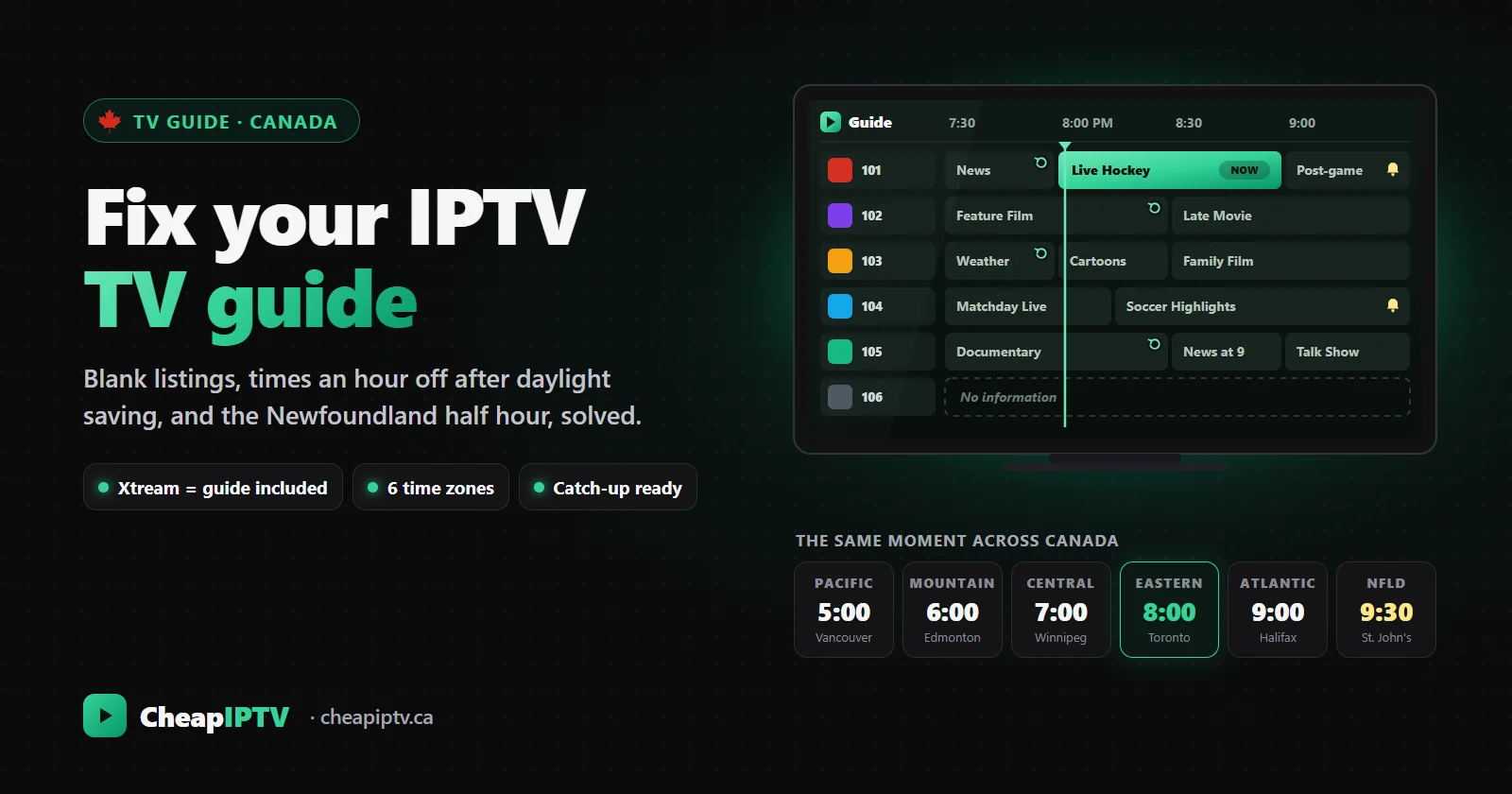
The channels play, the picture is sharp, and then you open the guide. Half the rows say "No information". The hockey game is listed as starting an hour after it actually started. Or the whole grid is empty and you are scrolling through 54,000 channel names like it is 1998. Of all the things that make IPTV feel worse than cable, a broken programme guide is the most common and, happily, the most fixable.
The guide is called the EPG, short for electronic programme guide. On cable it arrived through the box without anyone thinking about it. With IPTV it comes from a separate data file your player downloads and matches to each channel, and in a country with six time zones, a half-hour offset in Newfoundland and a province and a territory that never change their clocks, that matching step is where most problems start.
This guide explains how the EPG works, how to set it up properly the first time, and how to fix the five problems we see most often at CheapIPTV, an IPTV Canada service. It also covers how the guide powers catch-up TV, reminders and recordings, because once the guide is right, those features start working properly too.
- Log in with Xtream Codes, not a bare M3U link. Xtream loads the guide automatically; an M3U playlist usually needs a separate guide address.
- A blank guide right after setup is normal. Give it a few minutes to download several days of listings.
- Times off by an hour? Set the device's time zone by city (Toronto, Regina, St. John's) rather than a fixed GMT offset, then check the player's EPG time shift is set to zero.
- "No information" on a few channels usually means that channel has no guide data or is matched to the wrong listing. Refresh the guide, then fix the match in the player if it persists.
- Catch-up depends on the guide. If the times are wrong, catch-up starts programmes at the wrong point.
- What the EPG is and where it comes from
- Xtream Codes or M3U: why it matters for the guide
- Setting up the guide properly
- Fix 1: the guide is completely blank
- Fix 2: some channels say "No information"
- Fix 3: programme times are wrong
- Canada's time zones and the guide
- Fix 4: the guide runs out after a day or two
- Fix 5: the guide is slow to scroll
- How the guide powers catch-up TV
- Reminders, search and recordings
- The guide on each type of device
- Guide troubleshooting checklist
- Frequently asked questions
What the EPG is and where it comes from
The EPG is the grid of channels and programme times you scroll through to see what is on now and later. In IPTV it is not part of the video streams themselves. It is a separate file, almost always in a format called XMLTV, that lists every channel and every programme with a start time, an end time, a title and usually a short description.
Your player app does three jobs with that file. It downloads it, it matches each channel in the guide to a channel in your line-up, and it shifts every start and end time into your local time so the grid lines up with your clock. Each of those steps can go wrong independently, which is why "the guide is broken" can mean several very different things.
Two details are worth knowing before anything else.
- Guide times carry their own time zone. Each programme in an XMLTV file is stamped with a time and an offset from UTC, for example 8:00 pm at minus five hours. Your player converts that into local time using your device's time zone setting. If the device thinks it is somewhere else, every programme moves.
- Not every channel has guide data. In a line-up of tens of thousands of channels, major Canadian, American and European channels are well covered, but smaller international channels, event channels and temporary feeds often have no listings at all. A few "No information" rows are normal; dozens of them on channels you watch are not.
Xtream Codes or M3U: why it matters for the guide
When you set up a player, most apps offer two ways to add your subscription: an Xtream Codes login (server address, username and password) or an M3U playlist link. They play the same channels, but they handle the guide differently.
- Xtream Codes is a full connection to the provider's system. The player pulls the channel list, the categories, the movie and series libraries and the guide together, and it knows which guide entry belongs to which channel because the provider tells it. In practice, the guide just works.
- An M3U playlist is a list of stream addresses with names. Some playlists include the address of a guide file in their header, and many players pick that up automatically. If yours does not, you have to add the guide address by hand, and the player has to match channels by their guide IDs or names, which is where mismatches creep in.
Our recommendation is simple: whenever a player offers Xtream Codes, use it. Your activation email includes the three details you need. If you are already set up with an M3U link and the guide is patchy, switching that playlist to an Xtream login is often the fastest fix of all. Our installation guide shows the login screen on each device.
Setting up the guide properly
Ten minutes of setup avoids nearly every guide problem later. Do these in order on each device.
- Set the device's time zone by city. In the device settings, choose a named zone such as Toronto, Winnipeg, Regina, Edmonton, Vancouver, Halifax or St. John's, or turn on automatic time zone. Avoid fixed entries like "GMT-05:00": they never change for daylight saving, so your guide will be an hour off for half the year.
- Add your subscription with Xtream Codes and let the first load finish. Channels play straight away, but the guide download can take a few minutes, longer on a slow connection or a device with little memory.
- Check the player's EPG time shift is zero. Most players have a setting that moves all guide times forward or back by whole hours. It should only be used for a source that is genuinely wrong, and it is the most common cause of a guide that is off by exactly one hour.
- Choose how many days to keep. Many players let you set how many days of past and future listings to store. Three to seven days ahead is plenty. Keeping more uses memory and slows the guide on cheaper devices.
- Turn on automatic guide updates. Most players can refresh the guide when the app starts or every few hours. Leave this on so the listings never run out.
- Hide the categories you never watch. Fewer visible channels means a faster guide and less scrolling. You can always unhide them later.
If you have not picked a player yet, our comparison of IPTV player apps covers how each one handles the guide. TiviMate is the closest thing to a cable-style grid, which is why so many people settle on it.
Fix 1: the guide is completely blank
A completely empty guide has a short list of causes. Work through them in this order.
- It is still downloading. On a first login, or after the app has been closed for a while, the guide can take a few minutes to arrive. Channels play normally in the meantime. Wait five minutes before changing anything.
- You logged in with an M3U link that has no guide address. Add the guide address in the playlist settings, or switch to an Xtream Codes login, which brings the guide with it.
- The download failed partway. A dropped connection during the first load can leave the player with nothing. Use the "update EPG" or "refresh guide" option in the player's settings and let it finish.
- The device is out of storage. Guide data for a big line-up takes real space. If the device is nearly full, the download quietly fails. Uninstall apps you do not use and clear the player's cache.
- The device clock is badly wrong. If the date on the device is off by days, the player may think every listing is in the past or far in the future and show nothing. Turn on automatic date and time.
If none of those help, contact Online Support with the name of your player and device. We can check from our side that your account's guide is being served normally.
Fix 2: some channels say "No information"
When most of the guide is fine but particular channels show nothing, it is a matching problem or a data problem, not a broken app.
The channel has no guide data. Some channels simply are not covered by any listings source: smaller international channels, event channels that only exist for a tournament, and pop-up feeds. Nothing on your side will fix these, and they usually carry a clear name instead.
The channel is matched to the wrong listing, or to none. This happens most with M3U playlists, where the player matches by ID or name. Regional versions of the same network are the classic trap: a regional sports channel with four regional feeds can easily end up showing the listings for the wrong region. Good players let you change which guide entry a channel uses; look for an option such as "EPG source" or "choose guide" in the channel's menu. With an Xtream login, the provider's matching is usually right, so a refresh of the guide fixes most cases.
The listings for that channel have not loaded yet. If a channel showed listings yesterday and shows nothing today, refresh the guide before anything else.
If a channel you watch every day keeps showing "No information" or the wrong programmes, tell Online Support which one. Guide matching is something we can correct for everyone at once.
Fix 3: programme times are wrong
This is the most common guide complaint in Canada, and it usually comes in one of three forms.
Everything is off by exactly one hour
Almost always a daylight saving problem. Most of Canada moved its clocks back on Sunday, November 1, 2026, and will move them forward again on Sunday, March 14, 2027. A device set to a fixed offset such as "GMT-05:00" does not follow those changes, so its guide drifts by an hour twice a year. Set the time zone by city instead. If the device is right and the guide is still an hour out, check the player's EPG time shift setting; someone may have nudged it in the past to compensate for the old problem.
Everything is off by several hours
The device is set to the wrong time zone entirely, often UTC, or the time zone of the country it was made for. Some streaming devices start out on a US or UTC time zone until you change it. Correct the device's time zone and restart the player.
Off by half an hour
Newfoundland is the giveaway. Newfoundland Time is half an hour ahead of Atlantic Time, and a device set to Atlantic or to a whole-hour offset will show every programme 30 minutes out. Choose St. John's as the time zone. Most players only shift the guide in whole hours, so the device setting is the only real fix. Viewers in the province can find more on our IPTV in Newfoundland page.
The guide is right but the show is not on
Many Canadian and American networks run separate eastern and western feeds. If you are in Vancouver watching the eastern feed of a channel, the programme you see is three hours ahead of your local listings. That is not a guide fault; you are watching a different feed. Pick the feed for your region, or use the eastern feed on purpose to watch evening shows early. Hockey fans in the west often do exactly that; see our British Columbia hockey page.
Canada's time zones and the guide
Canada spans six time zones, and several places keep the same time all year instead of changing for daylight saving. That is why a setting that works in Toronto can be wrong in Regina or Whitehorse. This table shows what to choose on your device.
| Time zone | Offset from UTC (winter / summer) | Where | Choose on your device |
|---|---|---|---|
| Newfoundland | −3:30 / −2:30 | Newfoundland and southeastern Labrador | St. John's |
| Atlantic | −4 / −3 | Nova Scotia, New Brunswick, PEI, most of Labrador | Halifax |
| Eastern | −5 / −4 | Most of Ontario and Quebec | Toronto |
| Central | −6 / −5 | Manitoba and northwestern Ontario | Winnipeg |
| Central, no daylight saving | −6 all year | Most of Saskatchewan | Regina |
| Mountain | −7 / −6 | Alberta and the Northwest Territories | Edmonton |
| Pacific | −8 / −7 | Most of British Columbia | Vancouver |
| Yukon | −7 all year | Yukon | Whitehorse |
There are smaller exceptions too. Parts of northeastern British Columbia stay on Mountain Standard Time all year, and the eastern tip of Quebec's Lower North Shore keeps Atlantic Standard Time all year. If you live somewhere like that, pick the named zone your phone uses automatically; it will be the correct one.
Travel adds another wrinkle. If you take a streaming stick to the cottage in another province, or south for the winter, the guide follows the device's time zone, not your home. Change it when you arrive. Snowbirds will find more on this in our guide to IPTV for snowbirds. To check what time your device should be showing, the National Research Council publishes Canada's official time.
A guide that works like cable, on every device
Try CheapIPTV with a full programme guide and catch-up on your own TV. No contract, no auto-renewal.
Fix 4: the guide runs out after a day or two
If the grid is full today but empty from tomorrow evening, the player is not refreshing the guide often enough or is keeping too few days.
- Turn on automatic updates at app start or every few hours.
- Raise the number of days to keep to three or more, if your device has the memory for it.
- Do not force-close the app constantly. Some players only update the guide when they have been open for a while. Leaving the app on the home screen in the background is fine.
- Check the device is not being put into deep sleep by a power-saving setting that stops background updates. This is common on some smart TVs.
Fix 5: the guide is slow to scroll
A slow guide is usually the device, not the service. A big line-up with a week of listings is a lot of data, and cheaper streaming sticks with limited memory struggle to scroll it smoothly.
- Hide categories you never watch. This is the biggest single improvement. Hiding a few thousand international channels you will never open makes the guide far lighter.
- Keep fewer days of listings. Three days ahead is usually enough for planning an evening.
- Use favourites as your main view. A favourites guide of 20 or 30 channels scrolls instantly on any device.
- Clear the player's cache once a month and restart the device weekly.
- Consider better hardware for the main TV. A box with 3 to 4 GB of memory handles a full guide comfortably. Our guide to the best IPTV box in Canada compares current options.
If the guide is fine but the video itself stutters, that is a different problem. Our buffering troubleshooting guide covers it.
How the guide powers catch-up TV
Catch-up TV lets you go back and watch a programme that has already aired, on channels that support it. It feels like magic the first time you use it, and it depends entirely on the guide.
When you pick a past programme in the grid, the player uses that programme's start and end times from the guide to request the right slice of the channel's recent broadcast. If the guide is correct, the programme starts at the opening titles. If the guide is an hour off, catch-up starts an hour into the wrong show. This is why fixing time zone and time shift settings matters even for people who never look at the grid.
A few things to know:
- Only some channels have catch-up, and the number of days available varies by channel. Players usually mark these channels with a small icon in the guide.
- Past programmes are scrolled to the left of the "now" line in a grid guide. Select one and choose play or watch from start.
- Catch-up uses a screen just like live TV, so it counts toward your plan's simultaneous streams. Our multi-room IPTV guide explains how screens are counted.
For more on catch-up itself, including how sports fans use it to restart a game, see our catch-up TV guide.
Reminders, search and recordings
Once the guide works, so do the features that make IPTV feel like a proper TV service rather than a list of streams.
Reminders. Many players let you select an upcoming programme and set a reminder. When it is about to start, the player shows a notice or switches channel. It is the easiest way not to miss puck drop or the start of a final.
Search. Instead of scrolling, search the guide for a team, a show or a film title. The player lists every channel showing it in the coming days. With tens of thousands of channels, this is often the fastest way to find a game.
Recording. Some players can record a programme straight from the guide to the device's storage or a USB drive. Recording depends on the guide times, so the same time zone rules apply. If you plan to record often, choose a device with spare storage or a USB port.
Per-room favourites. Favourites and guide layouts are usually stored on each device, so the living room can have a sports-and-news guide while the kids' room shows only their channels.
Viewers who follow the news closely can find more on Canadian and international news channels on our IPTV news page, and bilingual households will find tips on organizing French and English channels in our Montreal and Quebec guide.
The guide on each type of device
Google TV, Android TV and Fire TV. These have the widest choice of players, and TiviMate in particular has a full cable-style grid with catch-up, reminders and per-channel guide matching. Set the time zone under the device's date and time settings. Our Android TV app guide and Fire TV Stick setup guide walk through installation.
Apple TV, iPhone and iPad. Players such as IPTV Smarters and GSE Smart IPTV show a guide with an Xtream login. Apple devices set their time zone automatically by default, which avoids most time problems. See our iPhone and iPad guide.
Samsung and LG smart TVs. TV-store players have simpler guides, and some TVs use their own clock settings, which are easy to leave on the wrong zone. Check the TV's time settings first if the guide is off. Our Samsung and LG setup guide lists the apps that work.
MAG boxes. The guide is built into the portal and loads with the channel list. Set the time zone in the box's system settings; a MAG box on the wrong zone shows the same symptoms as any other device.
Not sure which app suits your device? Our IPTV compatibility checker recommends one in a single click.
Guide troubleshooting checklist
Keep this list handy. It resolves almost every guide problem in a few minutes.
- Is the device's date and time correct, and is the time zone set by city?
- Is the player's EPG time shift set to zero?
- Did you log in with Xtream Codes? If you used an M3U link, does it have a guide address?
- Has the guide finished downloading? Refresh it from the player's settings.
- Is the device short of storage? Free some space and clear the player's cache.
- Are automatic guide updates turned on, and is the device kept out of deep sleep?
- Is a channel showing "No information" one that simply has no listings, or is it matched to the wrong entry?
- Are you watching an eastern or western feed that differs from your local time?
- Still stuck? Message Online Support with your device, player and the channel name.
New to IPTV altogether? Our beginner's guide to IPTV in Canada covers the basics before any of this. And when the guide works, IPTV stops feeling like a workaround and starts feeling like television again: a full grid, a week ahead, every channel where you expect it. That is the experience we aim for with every IPTV Canada plan we sell.
Frequently asked questions
What is EPG in IPTV?
EPG stands for electronic programme guide. It is the grid of channels and programme times in your IPTV player. It comes from a separate listings file, usually in XMLTV format, that the player downloads and matches to your channels.
Why is my IPTV guide blank?
Usually because it is still downloading after login, which can take a few minutes. Other causes are an M3U playlist without a guide address, a failed download, a device that is out of storage, or a device clock that is badly wrong.
Why are my IPTV guide times off by an hour?
Most often the device is set to a fixed GMT offset that does not follow daylight saving, or the player's EPG time shift has been changed. Set the time zone by city, such as Toronto or Vancouver, and set the time shift to zero.
How do I fix the IPTV guide in Newfoundland?
Set the device's time zone to St. John's. Newfoundland Time is half an hour ahead of Atlantic Time, and most players only shift the guide in whole hours, so the device setting is the only reliable fix.
Why do some channels show "No information"?
Either that channel has no listings available, which is common for smaller international and event channels, or it is matched to the wrong guide entry. Refresh the guide first, then change the channel's guide source in your player if needed.
Does catch-up TV need the guide?
Yes. Catch-up uses the programme's start and end times from the guide to play the right part of a past broadcast. If the guide times are wrong, catch-up will start at the wrong point.
Should I use Xtream Codes or M3U for the best guide?
Xtream Codes. It loads the channel list and the guide together and matches them for you. An M3U playlist often needs the guide address added separately and is more prone to mismatched channels.
Every channel, a full guide, catch-up included
54,000+ live channels with a programme guide on every device, from $19 a month. Interac e-Transfer, no contract, 7-day refund.