
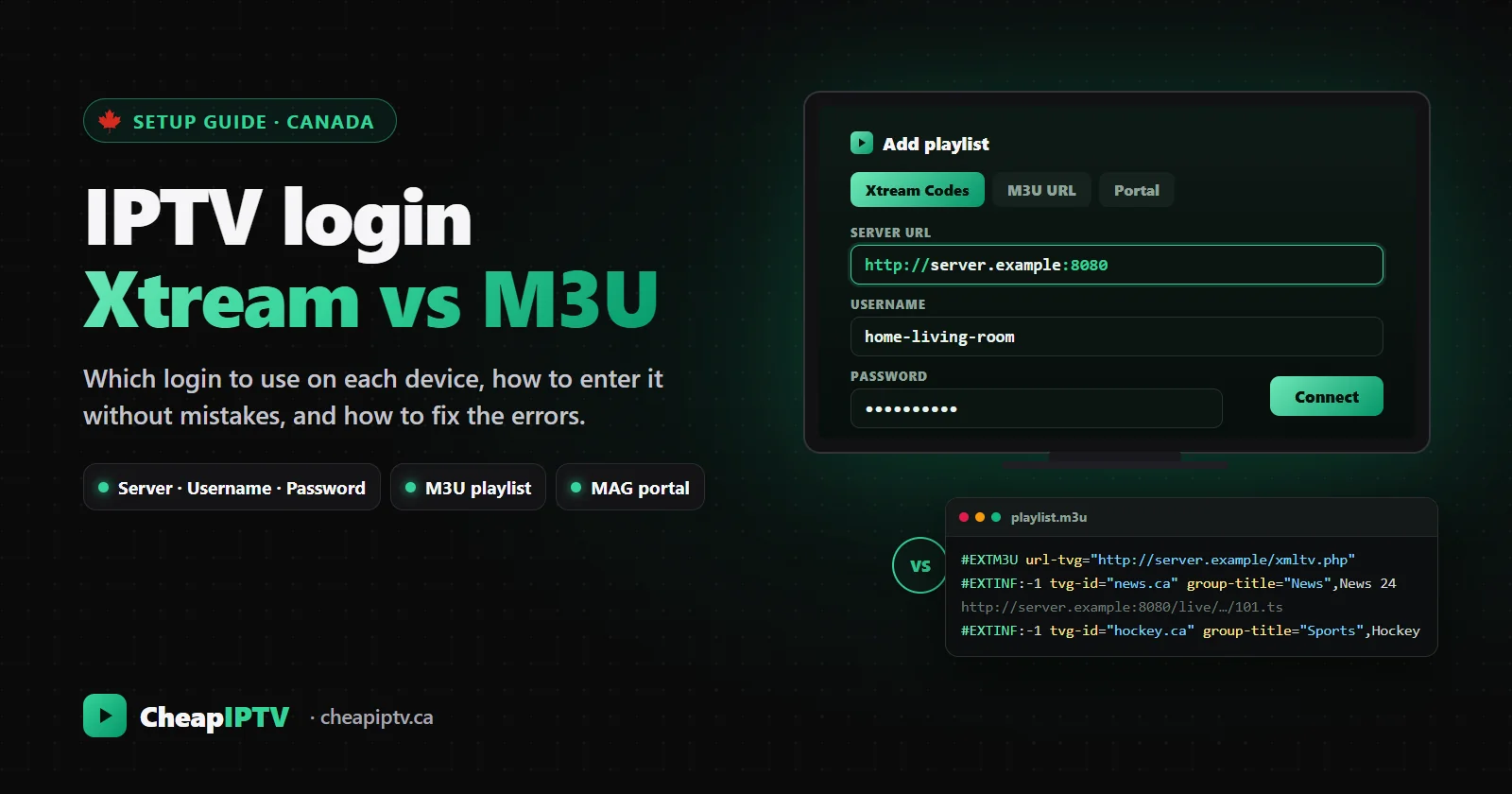
Your activation email arrives, and instead of a box to plug in you get a short block of text: a server address, a username, a password, and maybe a very long link that ends in something like type=m3u_plus. For anyone coming from cable, this is the most unfamiliar part of IPTV. It is also the part that decides whether the next ten minutes go smoothly or turn into a frustrating loop of "login failed" messages.
Those details are your IPTV login, and they come in two main styles: Xtream Codes and M3U. A third, the portal login, is used by MAG boxes and a few TV apps. They all open the same channels, but they behave differently in your player, and choosing the right one affects your programme guide, your movie library, and how easily you recover when something changes.
This guide explains all three in plain language, shows which to use on each device, and walks through the login errors we help with most often at CheapIPTV, an IPTV Canada service. If you have just subscribed, keep your activation email open and follow along.
- Use Xtream Codes whenever your player offers it. You enter three details (server, username, password) and the player loads channels, the guide, movies, series and catch-up together.
- Use an M3U link only for players that do not support Xtream, such as VLC or some smart TV apps. You may need to add the guide address separately.
- MAG boxes use a portal address instead of either.
- Copy and paste, never retype. One wrong character in the server address is the most common reason a first login fails.
- Treat your login like a password. Anyone who has it can use your screens.
- What an IPTV login actually is
- Xtream Codes explained
- M3U playlists explained
- Xtream Codes vs M3U at a glance
- Portal logins for MAG boxes
- Which login to use on each device
- Entering your login without mistakes
- Fixing common login errors
- Moving your login to a new app or device
- Keeping your login safe
- Your login when you renew or change plans
- Quick glossary
- Frequently asked questions
What an IPTV login actually is
An IPTV subscription is not an app. It is an account on your provider's servers, sometimes called a line, that is allowed to stream a certain number of channels at once for a certain period. Your login is simply how a player app proves it is allowed to use that account.
Whatever style it comes in, every IPTV login carries the same three pieces of information:
- Where the service lives: a server address, usually starting with http:// and often ending in a port number after a colon.
- Who you are: a username.
- Proof that it is you: a password.
Xtream Codes asks for those three things in separate boxes. An M3U link packs all three into one long web address. A portal login replaces the username and password with your device's hardware address. Understanding that they are three wrappings of the same idea makes every error message easier to read.
One more thing worth knowing: the login is the same on every device. You do not need a different one for the bedroom TV or your phone. Your plan limits how many screens play at the same time, not how many devices you set up. Our multi-room IPTV guide explains how screens are counted.
Xtream Codes explained
Xtream Codes is a login method that almost every modern IPTV player understands. The name comes from an older piece of server software, but today it simply describes a standard way for a player to talk to a provider's system.
When you choose Xtream Codes in a player, you fill in three fields:
- Server URL (sometimes called host or portal), for example http://server.example:8080
- Username
- Password
With those, the player has a two-way conversation with the provider's server instead of just downloading a list. It asks for the live channel categories, the channels in each one, the movie and series libraries with posters and descriptions, the programme guide, and which channels have catch-up. It also learns when your subscription expires, which is why many players show the end date in their settings.
That conversation is the big advantage. When the line-up changes, a channel is added, or a feed is fixed, the player picks it up automatically the next time it refreshes. Nothing on your side needs to be redone.
The programme guide is the other reason to prefer Xtream. Because the provider tells the player which guide entry belongs to which channel, the guide usually works the first time. If your guide is blank or wrong anyway, our IPTV EPG guide covers the fixes, most of which involve the device's time zone rather than the login.
M3U playlists explained
M3U is a much older and simpler format. It is a plain text file that lists streams, one after another. The file starts with a line reading #EXTM3U, and each channel takes two lines: an information line beginning with #EXTINF that carries the channel's name, logo, group and guide ID, followed by the address of the stream itself.
Your provider usually gives you an M3U link rather than a file. The link points to a playlist generated just for your account, and the player downloads it. Because the username and password are inside that link, it works on its own, with no other fields to fill in.
Simplicity is both the strength and the weakness of M3U.
- It works almost everywhere. VLC on a computer, Kodi, many smart TV apps and older players all accept M3U.
- It is a snapshot. The player sees the list as it was when it downloaded it. If the line-up changes, you need to refresh or reload the playlist to see the new version.
- The guide is separate. Some playlists include the address of a guide file in their first line, and good players use it automatically. Others need you to add the guide address by hand, and the player then matches channels to listings by ID or name, which is where mismatches creep in.
- Movies and series are basic. They often appear as long flat lists rather than a proper library with seasons and episodes.
You may also see the extension m3u8. It is the same format saved in UTF-8 text encoding, which matters for channel names with accents, such as French-language channels. Any modern player handles both.
Xtream Codes vs M3U at a glance
| Xtream Codes | M3U link | |
|---|---|---|
| What you enter | Server, username, password | One long link |
| Programme guide | Loads automatically, matched by the provider | Sometimes automatic, sometimes added by hand |
| Movies and series | Full library with posters, seasons and episodes | Often a flat list |
| Catch-up TV | Supported where the channel offers it | Limited, depends on the player |
| Line-up changes | Picked up automatically | Needs a playlist refresh |
| Subscription end date | Shown in many players | Not shown |
| Works in | Most dedicated IPTV players | Almost anything, including VLC and Kodi |
In short: Xtream Codes is the better experience, and M3U is the universal fallback. If a player offers both, choose Xtream.
Portal logins for MAG boxes
MAG boxes and a handful of other set-top boxes use a third method. Instead of an app with a login screen, the box has a portal setting. You enter a portal address, restart the box, and it loads the channel list and guide on start-up, much like a cable box.
Portal logins usually do not use a username and password at all. The provider authorizes the box itself by its MAC address, a unique hardware ID printed on a sticker underneath the box and shown in its settings. That has two practical consequences. First, the login only works on that box, so you cannot copy it to a phone. Second, if you replace the box, the new one has a different MAC address and the provider needs to update it on your account. Your activation email or Online Support will tell you exactly what is needed.
Some smart TV apps work in a similar way. They show you a device ID or MAC address on screen and ask you to add your playlist through the app maker's website, linked to that ID. It feels unusual the first time but it is the same idea: the device is registered, then the playlist is attached to it.
Which login to use on each device
This is what we recommend for the devices our customers use most.
- Google TV, Android TV and Fire TV: Xtream Codes in TiviMate or IPTV Smarters Pro. Both have a full guide, catch-up and a proper movie library. See our Android TV app guide and Fire TV Stick setup guide.
- Apple TV, iPhone and iPad: Xtream Codes in IPTV Smarters or GSE Smart IPTV. Our iPhone and iPad guide walks through it.
- Android phones and tablets: Xtream Codes in IPTV Smarters Pro or TiviMate. See our Android phone guide.
- Samsung and LG smart TVs: it depends on the app. Some take Xtream, some take an M3U link, and some use the device ID method described above. Our Samsung and LG guide covers the apps that work.
- Computers: an M3U link in VLC is the quickest way to watch on a laptop, though you will not get a proper guide.
- MAG boxes: the portal address from your activation email.
If you have not chosen a device yet, our guide to the best IPTV box in Canada compares the options, and our compatibility checker suggests the right app for any device in one click.
Get your own login in minutes
One login for every device, with the guide, movies and catch-up included. No contract and no auto-renewal.
Entering your login without mistakes
Most failed first logins come down to a typing error. These habits avoid nearly all of them.
For Xtream Codes
- Open your player and choose to add a playlist or user, then pick Xtream Codes (some apps call it "Xtream API" or "Login with Xtream").
- Give the playlist a name you will recognize, such as "Home".
- Copy the server address exactly, including http:// and the port number after the colon. Do not add a slash or anything else at the end, and do not change http to https unless your email says so.
- Copy the username and password. They are usually case-sensitive, so a capital letter matters.
- Save, and let the player load. Channels appear first; the guide and movie library follow over the next few minutes.
Typing on a TV remote is slow and error-prone. Many players let you paste from your phone, or you can open the activation email on the TV's browser and copy from there. Our installation guide shows the login screen for each device.
For an M3U link
- Choose to add a playlist by URL (not by file).
- Paste the full link. It is long, and every character counts, especially the parts after the question mark.
- If the player asks for a guide or EPG address, paste the guide link from your activation email.
- Set the playlist to refresh automatically, if the player allows it, so line-up changes reach you.
Fixing common login errors
Error messages differ from app to app, but they fall into a few families. Find yours below.
| What you see | Usual cause | Fix |
|---|---|---|
| "Invalid login", "authorization failed" or "wrong credentials" | A typing error, or a capital letter in the wrong place | Delete the entry and paste the details again |
| "Cannot connect", timeout, or endless loading | Server address missing http://, the port, or with an extra slash | Paste the server address exactly as it appears in the email |
| "Account expired" or "inactive" | The plan has ended | Renew, then refresh or re-add the playlist |
| "Maximum connections reached" | All your screens are in use, often by a box left playing | Stop playback elsewhere, or move to a plan with more screens |
| Channels play but the guide is empty | An M3U link without a guide address, or the guide still loading | Add the guide address or switch to Xtream; wait a few minutes |
| Old or missing channels | An M3U playlist that has not refreshed | Refresh the playlist, or switch to Xtream |
Two less obvious causes are worth knowing. Some home routers block unusual ports or use DNS settings that interfere with streaming; restarting the router, or trying the same login on your phone's mobile data, tells you quickly whether the network is involved. And a VPN running on the device can change how the server sees your connection, so if a login fails only with the VPN on, that is your answer. If streams connect but stutter, the login is fine and the problem is speed or Wi-Fi; our buffering guide picks up from there.
When none of this helps, send Online Support the name of your player, your device, and a photo of the error. We can check your account from our side.
Moving your login to a new app or device
Sooner or later something changes: a new streaming stick at Christmas, a switch from one player app to another, or a free trial login that needs replacing with your paid one. The login itself moves easily. What does not always move with it is everything you built on top of it.
What carries over and what does not
Your channels, guide, movies and catch-up come from the provider, so they appear on any device as soon as you log in. Your favourites lists, hidden categories, custom channel order, reminders and recordings are stored by the player app on that particular device. Log in on a new stick and you start with a clean slate.
Some players, TiviMate among them, can back up their settings and favourites to a file and restore them on another device running the same app. If you spent an evening arranging the perfect guide, make a backup before you retire the old device. Moving between different apps is another story: favourites do not transfer from one app to another, so plan on ten minutes of rebuilding.
Replacing a trial login with your paid one
If you started with a free trial, your paid plan may come with different details. Rather than adding a second playlist, edit the existing entry and paste the new server, username and password over the old ones. Many players keep your favourites when you edit a playlist this way. Then delete any old entry you no longer use, so the app is not quietly trying to connect with expired details every time it starts.
Several playlists in one app
Most players can hold more than one playlist, which helps in a household with two separate plans, or when a cottage plan sits alongside the one at home. Give each playlist a clear name, and remember that any playlist playing a stream uses a screen on the plan it belongs to.
Keeping your login safe
Your login is a key to your account, and it deserves the same care as any other password.
- Do not post it. Screenshots of your settings in forums or group chats often show the server, username and password in full. Crop or blur them.
- Do not share it outside your home. Anyone using your login takes one of your screens, and you will start seeing connection errors when you want to watch.
- Install players only from official app stores. An app from an unknown website can send your login, and more, somewhere else. Our IPTV box guide explains why unbranded "fully loaded" boxes are risky for the same reason.
- If you think it has leaked, contact support and ask for new login details.
Your login when you renew or change plans
Because plans are prepaid with no automatic renewal, there will be a moment when your term ends and you choose again. Here is what that means for your login.
When your plan ends, the player shows an expired or inactive message and channels stop loading. Your playlists, favourites and settings stay in the app.
When you renew, the account becomes active again. If your details stay the same, refreshing the playlist is all it takes. If they change, edit the existing playlist entry in your player and paste the new details; there is no need to reinstall the app or rebuild your favourites.
When you change plans, for example from one screen to three, or from a month to a year, Online Support moves you across and credits what you have already paid. You can compare every option on our IPTV pricing page: the 1-month plan suits a first try, the 3-month plan is our most popular, and the 12-month plan has the lowest monthly cost. If you are unsure which length fits, our plan length guide helps you decide.
Quick glossary
- Line: your subscription account on the provider's servers.
- Server URL, host or DNS: the address your player connects to. Providers use these words interchangeably.
- Xtream Codes (Xtream API): a login with server, username and password that loads everything automatically.
- M3U or m3u8: a playlist format listing streams; m3u8 is the same format in UTF-8 text.
- EPG or XMLTV: the programme guide data, usually supplied as an XMLTV file.
- tvg-id: the label in an M3U playlist that links a channel to its guide listings.
- group-title: the label that puts a channel in a category, such as News or Sports.
- Portal: the address a MAG box loads at start-up.
- MAC address: a unique hardware ID that portal logins use to recognize a box.
- Connections or screens: how many streams can play at the same time on your plan.
New to all of this? Our beginner's guide to IPTV in Canada starts from the very beginning. And once your login is in, everything else gets simpler: one set of details opens the full line-up of our IPTV Canada service on every screen in the house.
Frequently asked questions
What is the difference between Xtream Codes and M3U?
Xtream Codes is a login with a server address, username and password that loads channels, the guide, movies, series and catch-up automatically. M3U is a single playlist link listing the streams; it works in more apps but often needs the guide added separately and must be refreshed when the line-up changes.
Which is better for IPTV, Xtream Codes or M3U?
Xtream Codes, whenever your player supports it. It gives a more complete experience and picks up line-up changes automatically. Use M3U for players that only accept a playlist link, such as VLC.
Why does my IPTV login say invalid?
Almost always because of a typing error or a capital letter in the wrong place. Delete the entry and paste the server address, username and password exactly as they appear in your activation email.
Do I need a different login for each device?
No. The same login works on every device. Your plan limits how many screens play at the same time, not how many devices you set up.
What is the server URL in IPTV?
It is the address your player connects to, usually starting with http:// and often ending with a port number after a colon. Copy it exactly, without adding a slash or changing http to https.
How do I use IPTV on a MAG box?
MAG boxes use a portal address instead of a username and password. Enter the portal address from your activation email in the box's portal settings and restart it. The provider recognizes the box by its MAC address.
What happens to my login when my plan expires?
Channels stop loading and the player shows an expired message, but your playlists and favourites stay in the app. Once you renew, refresh the playlist, or paste new details into the existing entry if they changed.
One login, every channel, every screen
54,000+ live channels with the guide and catch-up, from $19 a month. Interac e-Transfer, no contract, 7-day refund.